


VR Smart Grid is a full-featured Expert Advisor for MetaTrader 4 and MetaTrader 5, built on the classical grid trading strategy. The robot independently opens positions, manages them and closes them in parts, creating an efficient order grid that adapts to changing market conditions. Over 15 years of development, the EA has gone through thousands of variations and tests — it is the result of systematic refinement on real and demo accounts.
Intelligent Position Averaging
One of the key features of VR Smart Grid is multiple averaging modes, including smart and partial averaging. The robot analyzes the current market situation, splits positions into optimal parts and calculates the average closing price so that it is as close as possible to the current market price. This approach helps to manage the order grid flexibly and more effectively bring positions out of drawdown without the need to constantly monitor the chart.

Eight Position Management Methods
VR Smart Grid offers eight different algorithms for closing positions, including working with real and virtual Take Profit levels. The trader selects the appropriate method for current market conditions and trading style. This provides full control over exiting the grid without manual intervention.
 Demo version + Set files Download
 Support for Any Financial Instruments
The robot works with Forex currency pairs, cryptocurrencies, CFDs, futures and precious metals. Its versatility allows you to test the strategy on different assets without limitations from the MetaTrader platform.
Flexible Position Size Calculation
VR Smart Grid offers several methods for automatic lot calculation: fixed lot, percentage of deposit, balance per minimum lot, or a fully manual sequence. Additionally, the robot can calculate lots using Martingale, Fibonacci, sum of extremes, or the sum of maximum and starting lot. You can also apply a multiplier to increase or decrease the calculated lots. This flexibility allows you to precisely manage the aggressiveness of trading.
Smart Adjustment of Distance Between Positions
The distance between orders in the grid can be set manually for each level or calculated automatically using one of several methods: fixed points, a modified ATR formula, percentage of price, difference between Bollinger Bands lines, difference between Donchian channel lines, or the average value of bars over a period. The robot can also gradually increase the distance or allow you to set a fully custom sequence of distances. This ensures adaptation to different levels of market volatility.
Trailing Stop and Position Protection
VR Smart Grid uses a trailing stop for profitable positions, automatically moving the Stop Loss into the profit zone as the price moves in a favorable direction. The robot supports classic trailing (fixed number of points), dynamic trailing (percentage of trend size), and manual mode. This allows you to protect profits while leaving room for further price movement.
Full Risk Control
You have full control over risk management: the distance between positions in the grid, the size of each position, the maximum number of open positions against the trend, and the maximum acceptable drawdown. The robot automatically takes broker commissions and swaps into account, reflecting the real situation in its calculations. You can set automatic closure of all positions when a specified profit or loss is reached and choose whether to continue trading or stop.
Trend and Counter-Trend Trading Modes
VR Smart Grid supports several trading modes: Long (only buy), Short (only sell), and Long & Short together (both sides). The robot can smoothly stop one side of trading while the other continues to operate, giving you maximum control over the strategy. “Smooth stop” modes allow the robot to close the entire order grid on one side before fully stopping.
Built-in Indicator Signals
VR Smart Grid can work with built-in signals from indicators: CCI, Donchian Channel, and Moving Average (double crossover). This helps the robot to choose entry points more accurately and confirm trading decisions. There is also the option to disable indicator signals and trade only using the grid logic, or to use custom signals from your own indicators via the terminal’s global variables.
Demo version + Set files Download Spread and Working Time Limits
The robot can stop trading if the spread exceeds the limit you set — this protects you from trading under low-liquidity conditions. You can set the start and end time for the EA so that it trades only during desired hours or sessions (for example, only during the European or American session).
Information Panel and Notifications
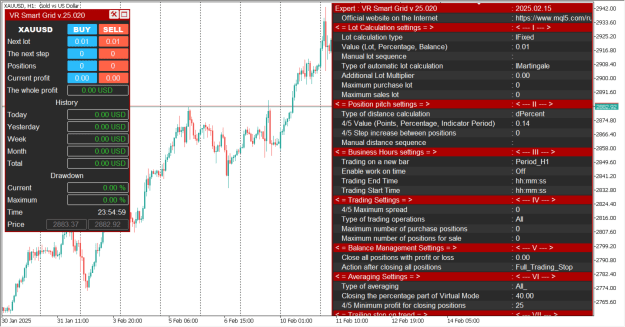
VR Smart Grid is equipped with a convenient information panel that displays current trading statistics directly on the terminal chart — all your open positions, average price, floating result and other important information. The robot supports notifications via Push messages to the MetaTrader mobile app, standard Alerts in the terminal, Email, and Telegram. You will not miss any important event.
Simple Configuration Even for Beginners
Despite its powerful functionality, VR Smart Grid is very easy to use. You do not need to be a programmer or a professional with many years of experience. The intuitive interface with detailed descriptions of every setting allows you to configure all necessary parameters in just a few minutes. There are recommended setting sets (SET files) for different trading styles.
Free Updates and Technical Support
You do not pay for each update — all improvements, fixes and new features are delivered free of charge. You have access to professional technical support from the author to solve any questions regarding configuration and usage. The EA’s author is a programmer with more than 15 years of experience in developing trading strategies.
Who Is VR Smart Grid For?
- For beginners who want to start automated trading without spending hours in front of the screen and making emotional decisions. The robot takes over the main work, allowing you to learn and develop your skills at a comfortable pace.
- For traders who want to minimize the impact of emotions. Human feelings — fear, greed, uncertainty — often lead to losses. An automated Expert Advisor removes the emotional factor, following the strategy impartially and with discipline.
- For busy people who cannot constantly monitor the market. VR Smart Grid works independently of your schedule, including weekends and holidays.
- For traders who want to apply a proven strategy. Grid trading is a classic method of position management that professionals have used for decades. VR Smart Grid is a modern implementation of this time-tested approach.
- For traders who trade different assets. Thanks to support for any instruments and timeframes, you can use a single robot to trade currencies, crypto, CFDs and other instruments.
Demo version + Set files Download
[/list]Important! When testing the program in the strategy tester, please keep the following points in mind:
- The best testing is to use the program under real conditions. To evaluate the real effectiveness of the application, please buy the program for a short time and use it on demo accounts or micro-accounts.
- The strategy tester built into MetaTrader does not take into account the following: financial instrument, trading period, spread, leverage, commission, ping, requotes, real tick receipt rate, tick quality and other conditions.
- The profitability and loss results obtained with the strategy tester should not be taken into account!
About the author
Hello! My name is Vladimir and I have been programming trading strategies and creating trading robots for more than 15 years. In my work I use only my own ideas and strategies. Development of trading robots is my passion. Every day I test new innovative ideas and, based on them, create unique functions for trading robots. I create professional trading tools. You can easily test all my products in the strategy tester, on demo accounts and even on real accounts under real conditions. I show everything as is and make no promises or guarantees of profit. Do you want to use unique trading applications? Feel free to write to me at the contacts listed below.
 ! - Beware of scammers, many sites have appeared on the Internet offering programs at big discounts, all of these sites are scammers - !
Official product pages VR Smart Grid in the Market Mql5.com:
 Market Mql5.com: MetaTrader 4
- Market Mql5.com: MetaTrader 5
 Payment: VISA, MasterCard, PayPal, UnionPay, WebMoney and others.
 Gifts, bonuses, other programs.
 Settings and set files are free. Visit page
- Free technical support.
- All updates are free.
 Official contacts of the author:
 E-Mail: [email protected]
 Telegram: @tradinggo
 Mql channel: Go
Demo version + Set files Download
Settings of a trading robot and their description
The trend is considered when the price is above the upper position for the purchase, it is considered against the trend when the price is below the upper position for the purchase. For sales with accuracy for circulation.
4/5 - the settings are marked with the number of signs after the comma by the broker.
Description of the settings and default settings are made for 3-5 significant brokers. For 2-4 significant configuration brokers, the marked 4/5 sign should be indicated 10 times less.
VR Smart Grid Settings Description
Lot Calculation Settings
- The type of lot calculation — This setting allows you to select the type of automatic lot calculation.
- Fixed lot (Example: 0.01) — Mode in which a standard fixed lot is used.
- Percentage lot (Example: 3) — Mode in which the new lot is calculated as a percentage of the deposit.
- The balance for the minimum lot — Mode in which the lot is calculated from the deposit amount for the minimum lot. For example, the trader sets a deposit value of 500. In this case, the total deposit will be divided by 500 and multiplied by the broker’s minimum allowed lot. If the deposit is 2000 USD and the trader specified 500 USD, 2000 / 500 = 4, 4 × 0.01 = 0.04, the starting lot will be 0.04.
- Value (Lot, Percentage, Balance) — The value for the selected lot calculation type.
- Manual sequence of lots, through ( ; ) — This setting allows you to specify any sequence of lots manually. It has the highest priority and disables the operation of the above settings.
- Type of automatic lot calculation — This setting lets you select the automatic method of lot calculation for new positions opened against the trend.
- The starting lot (Calculation example: 1,1,1,1,1) — The lot remains unchanged and is always equal to the lot calculated in the Value (Lot, Percentage, Balance) setting.
- Martingale lot (Calculation example: 1,2,4,8,16) — The lot is calculated using the formula: the lot of the previous position is multiplied by 2.
- Fibo lot (Calculation example: 1,1,2,3,5,8) — The lot is calculated according to the Fibonacci sequence principle; each new lot equals the sum of the previous two lots.
- The sum of the maximum and starting lot (Calculation example: 1,2,3,4,5) — The lot is calculated by adding the lot calculated in the Value (Lot, Percentage, Balance) setting and the lot of the last opened position.
- The sum of lots of extreme positions (Calculation example: 3+,4,7,10) — The lot is calculated by summing the lots of the first and the last positions.
- Additional lot multiplier (0 - Disabled) — This setting allows you to increase or decrease the calculated lot. Example: Fibonacci calculation without Additional lot multiplier: 1,1,2,3,5,8. Calculation with Additional lot multiplier equal to 2: 1×2 = 2, 1+2=3×2, 3+6=9×2. This setting can not only aggressively increase lot sizes but also reduce them if its value is less than 0. For example, 1×0.5 = 0.5, 1 + 0.5 = 1.5 × 0.5 = 0.75.
- Maximum Buy lot — This setting limits the maximum lot size for buy positions. If, as a result of lot management calculations, the lot is greater than specified, the robot will open a position with a lot not exceeding this value.
- Maximum Sell lot — This setting limits the maximum lot size for sell positions. If, as a result of lot management calculations, the lot is greater than specified, the robot will open a position with a lot not exceeding this value.
Position Step Settings
- Type of distance calculation — The type of distance calculation for new positions opened against the trend.
- Points (Example: 100) — The distance is calculated in points.
- ATR modified (Example: 50) — The distance is calculated using a modified ATR indicator formula. In this algorithm, the distance for sells may differ from the distance for buys.
- Percentages (Example: 1.5) — The distance is calculated as the percentage of growth or decline of the current price from the last position against the trend.
- Bollinger Bands difference line (Example: 12) — The distance is calculated as the difference between the upper and lower Bollinger Bands lines.
- Donchian difference line (Example: 22) — The distance is calculated as the difference between the upper and lower Donchian channel lines.
- The average value of the bars (Example: 30) — The distance is calculated as the average value of bars over the specified period.
- 4/5 Value (Points, Percentage, Indicator Period) — The value for the selected distance calculation type.
- 4/5 Step increase between positions (0 - Disabled) — This setting allows you to increase the distance depending on the number of positions of the against-the-trend type.
- Manual distance sequence, through ; (Example: 50;100;80;30) — This setting allows you to specify any sequence of distances manually. It has the highest priority and disables the operation of the above settings.
Uptime Settings
- Trading on a new bar — This setting restricts opening trading positions to the appearance of a new bar. Depending on the selected period and other calculated conditions, the robot will open positions only when a new bar of the specified timeframe appears. This setting does not affect indicator calculation algorithms. All indicator calculations are performed relative to the timeframe on which the EA is running.
- Trading end Time — The time when the robot should stop trading.
- Trading start time — The time when the robot should resume trading.
Trading Settings
- 4/5 Maximum Spread (0 - Disabled) — This setting stops the robot’s operation if the spread is greater than the value specified by the trader.
- Type of trading operations — This setting defines the type of trading positions to be used.
- Buy and Sell together — The robot can both buy and sell simultaneously.
- Buy Only — The robot can execute only buy trades.
- Sell Only — The robot can execute only sell trades.
- Buy - smooth stop — The robot smoothly stops buy trading. The logic: the robot continues to open buy positions until the entire buy grid is fully closed. After all buys are closed, new buy positions will no longer be opened.
- Sell - smooth stop — The robot smoothly stops sell trading. The logic: the robot continues to open sell positions until the entire sell grid is fully closed. After all sells are closed, new sell positions will no longer be opened.
- Buy and Sell is a smooth stop — The robot smoothly stops all trading. The logic: the robot continues to open both buy and sell positions until the entire grid is fully closed. After all positions are closed, no new positions will be opened.
- Control of manual positions (Magic Number = 0) — This setting allows the algorithm to take control of certain positions opened manually by the trader or by another EA. When using this setting, the Magic Number parameter must be set to 0 for manual positions or to the Magic Number of another EA. Avoid using several EAs with the same Magic Number! Before enabling this setting, to avoid conflicts between EAs, other robots should be turned off. This setting allows you to resolve complex situations created by other EAs or by manual trading.
- Maximum number of purchase positions (0 - Disabled) — This setting limits the maximum number of buy positions against the trend.
- Maximum number of positions for sale (0 - Disabled) — This setting limits the maximum number of sell positions against the trend.
Balance Management Settings
- Close all positions with profit or loss (Example: 50 or -30) — This setting specifies the amount of profit or loss at which the robot must close all buy and sell positions.
- Action after closing all positions — This setting defines the robot’s further actions after closing all positions.
- Close all positions and Stop trading — Completely stop the robot’s trading.
- Close all positions and Continue trading — Continue trading.
Averaging Settings
Type of averaging — This setting allows you to select the type of average price calculation. Partial closure is possible only when using virtual levels.
- All positions, real TakeProfit — Works only with real levels; an averaging type in which all buy positions or all sell positions are included in the calculation.
- Two extreme positions, a real TakeProfit — Works only with real levels; an averaging type in which the two extreme buy positions or two extreme sell positions are included in the calculation.
- The last two positions, the real TakeProfit — Works only with real levels; an averaging type in which the last two positions with the largest lots for buy or the last two positions with the largest lots for sell are included in the calculation.
- Smart choice, Real TakeProfit — Works only with real levels; an averaging type in which the robot analyzes all averaging prices and chooses the best one.
- All positions, virtual TakeProfit — Works only with virtual levels; an averaging type in which all buy positions or all sell positions are included in the calculation.
- Two extreme positions, virtual TakeProfit — Works only with virtual levels; an averaging type in which the two extreme buy positions or two extreme sell positions are included in the calculation.
- Last two positions, virtual TakeProfit — Works only with virtual levels; an averaging type in which the last two positions with the largest lots for buy or the last two positions with the largest lots for sell are included in the calculation.
- Smart choice, virtual TakeProfit — Works only with virtual levels; an averaging type in which the robot analyzes all averaging prices and chooses the best one.
- Do not use averaging — This setting disables automatic averaging calculations. Position management is carried out using other functions or manually by the trader.
- Closing the percentage portion of the Virtual mode (Example: 25) — Works only with virtual averaging modes. This setting defines the percentage of position lots to be closed.
- 4/5 Minimum profit for closing positions (Example: 25) — This setting defines the number of additional profit points when closing a series of positions.
- Manual sequence of profit, via ( ; ) — This setting allows you to specify any sequence of profit in points manually. It has the highest priority and disables the operation of the above setting (Minimum profit for closing positions).
Trailing Stop in the Trend
- Type of trend-based trailing — This setting defines the type of trailing stop for trend positions:
- Classic — Classic trailing stop where the Stop Loss is moved after the price by a specified number of points.
- Dynamic — Dynamic trailing stop where the Stop Loss distance is calculated as a percentage. This trailing requires specifying the potential trend size in points (the average trend size for EURUSD is 8000–11000 points).
- Manual — Mode in which the trader manually manages Stop Loss movement.
- 4/5 Potential trend size (Points) (Example: 10000) — The value for the selected trailing stop calculation type.
- Maximum percentage for a trailing stop (Dynamic) — This setting limits the dynamic trailing stop if the trend is larger than the value specified in 4/5 Potential trend size.
Trailing Stop Against the Trend
- Type of anti-trend trailing — This setting defines the type of trailing stop for positions against the trend:
- Classic — Classic trailing stop where the Stop Loss is moved after the price by a specified number of points.
- Dynamic — Dynamic trailing stop where the Stop Loss distance is calculated as a percentage. This trailing requires specifying the potential trend size in points (the average trend size for EURUSD is 8000–11000 points).
- Manual — Mode in which the trader manually manages Stop Loss movement.
- 4/5 Potential trend size (Points) (Example: 10000) — The value for the selected trailing stop calculation type.
- Maximum percentage for a trailing stop (Dynamic) — This setting limits the dynamic trailing stop if the trend is larger than the value specified in 4/5 Potential trend size.
Setting Up Strategies
- The type of signals for the strategy — This setting defines the type of signal used to open positions.
- Do not use indicator signals — No indicator signal is used; the robot checks for positions and, if there are none, starts trading.
- CCI indicator signal — Signal from the CCI indicator. A buy signal occurs when the current CCI value on the current bar is greater than its value on the previous bar and the indicator value is below -100. The opposite signal is used for sells.
- The signal of the Donchian channel indicator — Signal from the Donchian channel indicator. A buy signal occurs when the price breaks the upper boundary of the channel. The opposite signal is used for sells.
- Intersection of the 2x Moving Average — Signal from the crossover of two Moving Averages. A buy signal occurs when the fast Moving Average crosses the slow Moving Average from bottom to top. The opposite signal is used for sells.
- The signal of the user indicator — User signal from a custom indicator or other application. The EA can receive signals from external applications. The principle of signal transfer is very simple: your application must send a signal via the terminal’s global variables according to the rule: 1 — open a buy, -1 — open a sell. The naming principle for the global variable is: _Symbol + "-VRSG-" + iMagicNumber;
- _Symbol — the symbol name of the financial instrument in the terminal.
- "-VRSG-" — the distinctive prefix.
- MagicNumber — the ID of the EA to which the signal is sent.
- Period of indicators: Donchian, CCI, Moving Average 1 (Example: 25) — The period value for the first specified indicator.
- Indicator period: Moving Average 2 (Example: 33) — The period value for the second specified indicator.
Other Settings
- The size of the information panel — The size of the information panel.
- Smartphone notifications — This setting allows you to receive notifications about changes in the robot’s trading in MetaTrader on your mobile device.
- Notifications in the terminal — This setting enables standard Alerts in the terminal.
- Email notifications — This setting allows you to receive email notifications about changes in the robot’s trading.
- Telegram notifications — This setting allows you to receive notifications about changes in the robot’s trading in a Telegram channel.
- Telegram Channel Name — The name of the Telegram channel.
- Secret Telegram Bot token — The secret token of the Telegram bot working in the channel.
- Serial number of items (MagicNumber) — The unique ID for positions.
- 4/5 Slippage (Points) — Slippage.
- Comment on the positions — A comment for positions or its mask. The mask allows comments to be generated automatically. The maximum number of tags for a mask is 3. Example: :eaname: :magic: — the comment will be: VR Smart Grid v.25.020 MN 227.
- Mask tags:
- :eaname: — writes the EA name and version in the comment.
- :magic: — writes the EA’s MagicNumber in the comment.
- :balance: — writes the account balance at the time the position is opened.
- :equity: — writes the floating profit or loss at the time the position is opened.
- :typpos: — writes the position type.
Important! When testing the program in the strategy tester, please keep the following points in mind:
- The best testing is to use the program under real conditions. To evaluate the real effectiveness of the application, please buy the program for a short time and use it on demo accounts or micro-accounts.
- The strategy tester built into MetaTrader does not take into account the following: financial instrument, trading period, spread, leverage, commission, ping, requotes, real tick receipt rate, tick quality and other conditions.
- The profitability and loss results obtained with the strategy tester should not be taken into account!
About the author
Hello! My name is Vladimir and I have been programming trading strategies and creating trading robots for more than 15 years. In my work I use only my own ideas and strategies. Development of trading robots is my passion. Every day I test new innovative ideas and, based on them, create unique functions for trading robots. I create professional trading tools. You can easily test all my products in the strategy tester, on demo accounts and even on real accounts under real conditions. I show everything as is and make no promises or guarantees of profit. Do you want to use unique trading applications? Feel free to write to me at the contacts listed below.
! - Beware of scammers, many sites have appeared on the Internet offering programs at big discounts, all of these sites are scammers - !
Demo version + Set files Download