



GTS SMC Engine [Semi-Automated EA] - Technical Overview and User Guide
The GTS SMC Engine is a comprehensive institutional market structure mapper designed to simplify the application of Smart Money Concepts. It functions as a semi-automated trading interface, allowing traders to focus on high-level decision-making while the engine handles the precise calculation of structural breaks, liquidity pools, and entry parameters.
Initial Setup and Data Integrity
Before attaching the engine to your chart, it is vital to ensure your MT4 terminal has sufficient historical data. To do this, right-click on your chart and select Refresh, then manually visit every timeframe from M1 to Monthly. This allows the engine to accurately calculate the long-term structural "spine" and provide reliable multi-timeframe liquidity levels.
Semi-Automated Execution Interface
Unlike traditional EAs that trade automatically, this engine acts as a professional workstation. It provides visual analysis and two distinct execution pathways via on-screen buttons.
1. The [Trade] Button (Retracement Model)
Clicking this button places a Pending Limit Order at the edge of the identified zone. 
Broker Time Configuration
To ensure the session ranges (Asia, London, and New York) and the Silver Bullet windows are mapped correctly, you must configure the GMT Offset in the settings to match your broker. 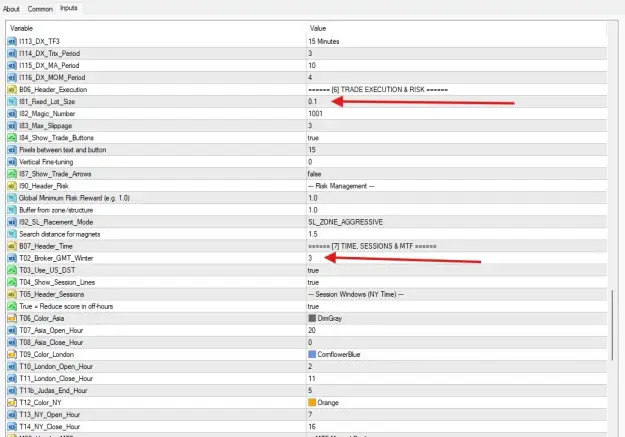
System Maintenance and Resets
Financial markets can occasionally produce "noise" or overlapping structural points that may cause the engine to stay in a specific state (such as a CHoCH) for longer than expected. If you notice that the Protected Lines are stuck or the analysis appears dated:
The GTS SMC Engine is a comprehensive institutional market structure mapper designed to simplify the application of Smart Money Concepts. It functions as a semi-automated trading interface, allowing traders to focus on high-level decision-making while the engine handles the precise calculation of structural breaks, liquidity pools, and entry parameters.
Initial Setup and Data Integrity
Before attaching the engine to your chart, it is vital to ensure your MT4 terminal has sufficient historical data. To do this, right-click on your chart and select Refresh, then manually visit every timeframe from M1 to Monthly. This allows the engine to accurately calculate the long-term structural "spine" and provide reliable multi-timeframe liquidity levels.
Semi-Automated Execution Interface
Unlike traditional EAs that trade automatically, this engine acts as a professional workstation. It provides visual analysis and two distinct execution pathways via on-screen buttons.
1. The [Trade] Button (Retracement Model)
Clicking this button places a Pending Limit Order at the edge of the identified zone.
- Best for: Traders looking for the highest possible Risk:Reward ratio.
- Trade-off: There is a risk that price may reverse just before reaching your limit order, leaving the trade unexecuted.
2. The [A+ STP] Button (Confirmation Model)
This button becomes active only when the engine detects institutional displacement and momentum (A+ setup). Clicking it places a Pending Stop Order.
- Best for: High-probability trading. It ensures you only enter the market once price has actually started moving in your predicted direction.
- Trade-off: Because you are waiting for confirmation, the entry price will be further away from the structural low/high, resulting in a lower Risk:Reward ratio compared to limit orders.
Attached Image (click to enlarge)
Broker Time Configuration
To ensure the session ranges (Asia, London, and New York) and the Silver Bullet windows are mapped correctly, you must configure the GMT Offset in the settings to match your broker.
- For GMT+3 Brokers (e.g., XM): Set the offset to 3.
- For GMT+0 Brokers (e.g., Exness): Set the offset to 0.
Failure to set this correctly will result in inaccurate session liquidity lines.
Attached Image (click to enlarge)
System Maintenance and Resets
Financial markets can occasionally produce "noise" or overlapping structural points that may cause the engine to stay in a specific state (such as a CHoCH) for longer than expected. If you notice that the Protected Lines are stuck or the analysis appears dated:
- Click the [Reset] button on the dashboard. This forces the engine to flush its immediate memory and perform a fresh forensic scan of the current price action to realign the structure.
Summary of Workflow
- Load historical data across all timeframes.
- Verify that the Broker GMT offset matches your terminal time.
- Use the visual zones and IDM levels to determine your bias.
- Choose between [Trade] for aggressive retracements or [A+ STP] for conservative momentum entries.
- Use the [Reset] button if the market undergoes a period of extreme volatility or structural indecision.
===================================
Attached File(s)


