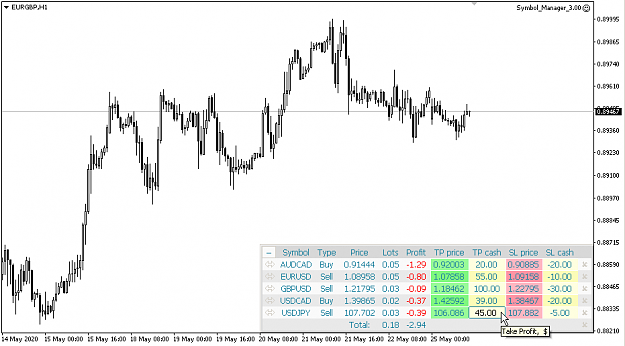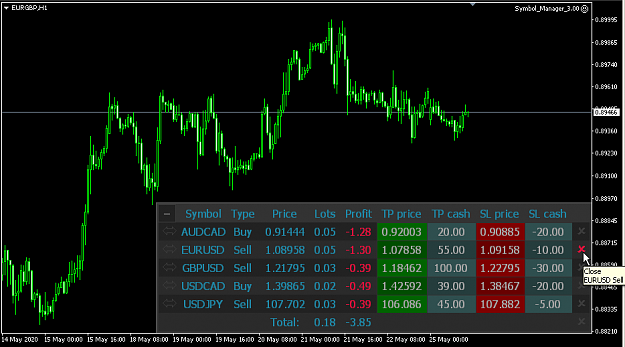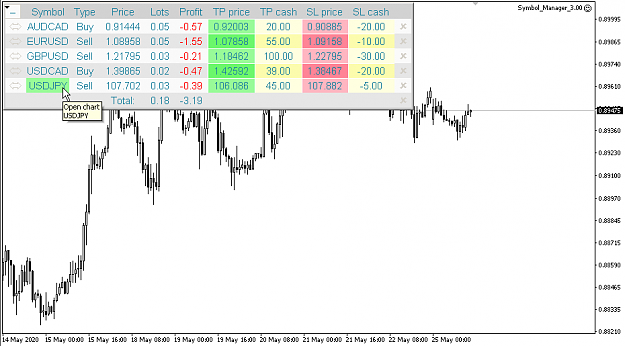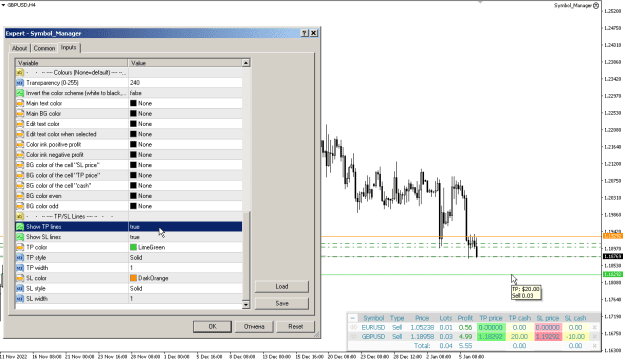


Symbol Manager or Grid Manager, designed to group orders into one position (by Symbol or by Magic Number). This utility will be useful to multi-currency traders (many EAs), who can have multiple orders on several pairs. You will be able to see the total number of lots, the total profit, and set virtual stop loss and virtual take profit. To set a real TP (or SL), you must first set the virtual value, and then enter the command in this cell: "set". If you want to set real TP/SL for all orders at once, then enter the command: "set all" or "setall".
The Symbol Manager collects orders all together into one position. So you see not dozens of orders, but positions collected by type and pair, which you can manage. EA does not trade by itself, it only does what you tell it to.
"Symbol Manager" for MT4 & MT5.
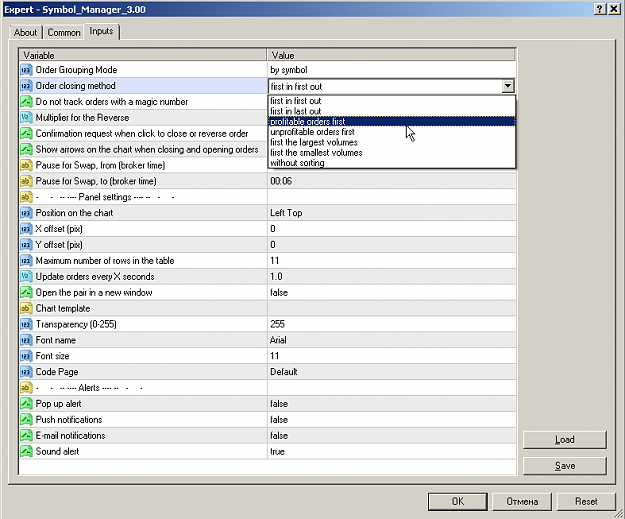
Parameters
Order Grouping Mode:
- by Symbol
- by Magic and Symbol
- do not group
Order closing method — order closing modes:
- first in first out — (FIFO) starting from the first open orders;
- first in last out — (FILO) starting from the last open orders;
- profitable orders first — starting with the most profitable;
- unprofitable orders first — starting with the least profitable;
- first the largest volumes — starting with the largest volumes;
- first the smallest volumes — starting with the smallest volumes;
- without sorting — don't sort;
Do not track orders with a magic number — do not manage orders with a magic number;
Multiplier for the Reverse — multiplication factor for position reversal;
Confirmation request when click to close or reverse order — ask for confirmation when closing or reversing positions;
Show arrows on the chart when closing and opening orders — display trade arrows on the chart;
Pause for Swap, from (broker time) — the beginning of a pause in the work of EA;
Pause for Swap, to (broker time) — the end of a pause in the work of EA.
Sort lines by:
- Symbol
- Price
- Type
- Lot
- Positions counter
- Magic Number
- do not sort
Clear TP/SL values on EA startup.
Magic for Reverse (-1 is the same as the original).
Panel setup:
Position on chart — the angle of the panel on the chart;
X offset (pix) — shift the panel along the X axis;
Y offset (pix) — shift the panel along the Y axis;
Maximum number of rows in the table — the number of rows in the window;
Update orders every X seconds — update period for all pairs and timeframes;
Open the pair in a new window — open a symbol in a new chart window by clicking.
Chart template — the name of the template for the chart, if the chart opens in a new window.
Font name.
Font size.
Notification setup:
Pop up alert.
Push notifications.
E-mail notifications.
Sound alert.
Columns in the table:
Average Price — show average price column;
Positions counter — how many positions are combined in a line;
Lots — show lots column;
Profit in money — show profit column in deposit currency;
Profit in percentage (from acc. balance or specified amount) — show profit column as a percentage. The percentage is calculated either from the account balance or from a given amount;
Profit in points — show profit column in points;
TP points — show take profit column in points;
SL points — show stoploss column in points;
TP price — show take profit column in prices;
TP cash — show the take profit column in money;
SL price — show stoploss column in prices;
SL cash — show stoploss column in money.
Magic Number.
Specified amount for 'Profit in percentage' (0=acc. balance) — amount for calculating the percentage, for the column "Profit in percentage".
Video