
- User Guide
Introduction
Welcome to the Forex Factory user guide! The Forex Factory website is a complex application that can take a long time to explore and understand. While this user guide only covers a fraction of the website, it will give you a great head-start in understanding the site's functionality and underlying rationale.
Forex Factory is entirely focused on curating forex-market information for traders. The nature of this information is primarily real-time (i.e., what's happening right now), and the scope ranges from economic data to analysis from members. You can read more about the Forex Factory website, and the ideals that drive it, on the Mission page.
Forex Factory hosts seven products: Trade Explorer, Forums, Trades, News, Calendar, Market, and Brokers. There's a link to each of these products in the header of every page, except for the Trade Explorer which is located on your member profile (once created).
Additional Help
If you need assistance with something not covered in this user guide, you can get help through the following channels:
- Help with the website: Submit a help request
- Help with your trading: Search the website or post your questions on the Forums
- Report a member: Submit a 'Cleanup Report' () on any of the member's posts
- Report a website bug: Submit a bug report
Time Zone Settings
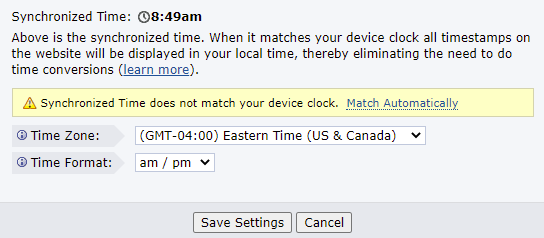
To synchronize the website with your local time, click the clock (
Please note that time zone settings will also automatically adjust for DST (“Daylight Saving Time”), thereby removing the need to adjust the time if your region follows seasonal time changes.
Default Time
Forex Factory automatically defaults to the time zone used in your country. If your country has multiple time zones, Forex Factory defaults to the primay time zone for that country.
If you are having problems with your time zone settings, please submit a help request.
Membership
The following is a partial list of actions a member can perform (which a guest cannot):
- Set alerts for forums, news, price, and calendar events
- Post in the Forums
- Submit stories in the News
- Create a Trade Explorer
- Manage a member profile
- Subscribe to news, calendar events, threads, stories, and members
- Private message with other members
- Shout on members' profiles
- Retain settings across multiple computers/devices
Forex Factory is built on the concept of easily-accessed information, and therefore your profile and most of what you post on the website (e.g., replies in the forums, comments on news stories, shouts on profiles) is publicly visible. And in many cases it's a permanent record that cannot be deleted. However, it's possible (and encouraged) to remain completely anonymous by never revealing your personal identity on the website. As long as your posts and username do not reveal your identity, your activity on Forex Factory will never be connected to you personally.
If you choose to connect your personal identity to your Forex Factory username, you're effectively making everything you post on the website a permanent public record. Only members who understand how to manage this risk (e.g., commercial services) should make this connection.
Forex Factory has no financial relationship with members, and doesn't request personal information from members. The only information required for membership is a username and a working email address. You're encouraged to conceal any information that could be used to connect your username to your personal identity.
Some aspects of the website are clearly kept private, like the Private Messaging system and Trade Explorers set to 'Me Only.' Any interactions you have with Forex Factory staff will also be held in confidence. Forex Factory also takes the following measures to improve privacy:
- Your information and activity will not be sold (see 'Revenue model')
- Your email address will never be shared
- Trade Explorer data is not stored after you delete it
- Private messages are not stored after you 'permanently delete' them
How do I change my username?
If you've made less than 20 posts, you can change your username by submitting a help request. If you have more than 20 posts, your username cannot be changed unless there are substantial privacy concerns.
How do I delete my username?
If you've made less than five posts, you can have your username deleted by submitting a help request. If you have more than five posts, your username cannot be deleted, as it would disrupt the conversations in which you've participated.
Impact Ranking System
| | = High Impact Member = Top 2% |
| | = Medium Impact Member = Top 5% |
| | = Low Impact Member = Top 10% |
To illustrate, a member displaying a high-impact icon (
MIRS considers both 'Buddies' and 'Subscribers' (found in profile 'Network' block) to be a subscriber, since buddies are simply mutually-subscribed members. However, there are some subscribers that do not count, as explained in the following 'Caveats' section. Also, commercial members are excluded from the system at this time.
MIRS has several ancillary uses as well. For instance, you can filter the Trade Feed by impact, posting in threads can be restricted by impact, and thread starting in the Interactive Trading forum is restricted to members with impact.
Subscriber Caveats
While rankings are 'based on the number of subscribers' a member has, there are two types of subscribers that do not count toward a member's rank:
Caveat 1: A subscription from a member who joined less than six months ago does not count. This defends against system abuse, and somewhat insulates the rankings from novice traders.
Caveat 2: A subscription from a member who's been inactive for more than six months does not count. This helps keep the rankings current by discounting the affect of inactive members.
Ranking Formula
The MIRS formula is completely transparent. Rankings are formulated through the following process:
- List all non-commercial members who have at least one subscriber or subscription
- Calculate how many subscribers each member has (both 'Buddies' and 'Subscribers')
- Exclude subscribers who joined less than six months ago
- Exclude subscribers who have been inactive for more than six months
- Order the list by number of included subscribers
- Divide the list into percentiles, with each percentile holding an equal number of members
- Rank members who fall into the 1st or 2nd percentile as 'high impact'
- Rank members who fall into the 3rd through 5th percentiles as 'medium impact'
- Rank members who fall into the 6th through 10th percentiles as 'low impact'
How many subscribers do I need to be ranked?
It depends on the current size of the membership and the activity status of your subscribers, but an approximate answer can be found by analyzing low impact members on the member list. That page also contains a 'Member Stats' block that tallies the number of members currently ranked high/medium/low.
Trader Code of Conduct
Forum Code of Conduct
I. Focus on trading
Forex Factory is focused entirely on forex trading, and therefore the primary focus of every member should be trading. The amount of trading-related sentences a member posts must far outweigh the non-trading sentences. While non-trading topics will naturally be mixed into discussions, the foundation of every discussion and debate should be related to trading.
This code is essential to maintaining a high-quality trading environment. Not only does trading focus keep the environment pure, but with members from every nation, religion, and political party, trading is the only thing everyone has in common. Focusing on what unifies the membership results in a superior trading environment.
II. Respect fellow traders
Theoretically, all members are at Forex Factory for the same purpose: the pursuit of trading profits. Therefore, members should treat each other like professional colleagues. Members should not be mean-spirited, harassing, or otherwise show hatred toward a member. Unresolvable personality conflicts should be managed using the 'Ignore' (
III. No bickering
While trading-related debate is encouraged, members should not engage in mindless arguing, battling, or trolling. Not only does bickering distract others from trading, but it wastes energy for the bickering participants. Unresolvable personality conflicts should be managed using the 'Ignore' (
IV. No nationalism or racism
With members from every nation and race, members should be sensitive to how they speak about other countries and ethnicities. Members should never show hatred for or be derogatory toward a country or a race of people. Generally, countries should only be referred to in terms of economics or market impact, and with an unbiased financial tone. Humorous tones, however, are generally accepted.
V. No politics or religion
Politics and religion should not be discussed unless it's in direct relation to their market effect. Politics play a big role in the markets, and therefore, it's inevitable they'll be discussed — members who participate in these discussions must ensure they're not letting their partisan bias into the conversation. Generally, a member's political or religious affiliation should not be obvious from their posts.
Politics and religion are among the most controversial topics in the world. At best, both topics are a distraction from the pursuit of trading profits, and at worst, they boil emotions. Minimizing these topics minimizes the negative commotion they typically invoke. Humorous tones, however, are generally accepted.
VI. No conspiracy or doomsday
Forex Factory is not the place for people with an extraordinary ability to detect conspiracies, or people who have the ability to predict the demise of a market, monetary system, government, country, civilization, or the world itself. These abilities are not useful in trading, and serve as a distraction to traders who view the market from a professional standpoint.
VII. No personal agendas
Forex Factory may not be used for personal agendas such as ego boosting, gaining attention, or exacting revenge. These agendas, even when tied to trading topics, can cause large-scale distractions that take focus off trading.
VIII. No commercial agendas
Members may not use Forex Factory to promote a product or service, either their own or someone else's. This includes products or services that are planned for the future. If a member's posts can link them to a commercial enterprise in the financial markets, they're in violation of this code.
Members who are focused on a product or service, or new members who mention a little-known website, are generally suspected to be company shills. Action may be taken against suspected shills without conclusive evidence, as they compromise the integrity of discussions and can be difficult to prove conclusively.
Members who wish to promote a commercial product or service must be designated a 'Commercial Member' and are expected to abide by the Commercial Code of Conduct.
There's currently an exception to this code for brokers who advertise on Forex Factory (listed on Brokers) — they are allowed to host a thread and respond to traders in the Broker Discussion forum.
IX. One username at a time
Traders should only operate one Forex Factory username at a time. Controlling multiple usernames simultaneously is prohibited, regardless of the intent, because it compromises the integrity of discussions.
Forex Factory employs a sophisticated system for detecting the use of multiple usernames. It goes far beyond simple IP address matching to ensure that no one is manipulating discussions with multiple users. Usernames that are found to be duplicates are marked with the 'Additional Username' status, and blocked from further posting.
News Comments Code of Conduct
I. No Hate Speech
Traders may challenge viewpoints or express sharp opinions, but comments that promote hatred, discrimination, harassment, intimidation, or harm toward a person or group based on race, gender, nationality, religion, disability, or similar characteristics are strictly prohibited. Threats of violence, dehumanizing language, or content that encourages or depicts serious harm to yourself or others are not allowed.
II. No commercial agendas
News comments are not a venue for advertising products, services, trading signals, paid courses, or affiliate links. All commercial discussions are held in the Commercial Content forum.
III. No Spam
Posting the same or largely similar remarks under multiple articles, flooding news comments with off-topic content, or pasting content wholesale from automated tools is not appropriate.
Commercial Code of Conduct
I. Be transparent
Members who are associated with a product or service should make that fact obvious. There's zero tolerance for cloaking a company association with the intent of promoting a product or service (e.g., pretending to be a happy customer, etc.).
II. No Spam
Commercial members should not spam Forex Factory by posting duplicate content, bumping their threads, or flooding the website with worthless posts.
III. No Scams
Products and services that are built upon bad intent (i.e., the seller knows the service is not worth the price) are not allowed to be promoted on Forex Factory. This generally includes signal services, multi-level-marketing, and get-rich-quick schemes.
While Forex Factory does not evaluate every product or service promoted by Commercial Members, if one comes to the staff's attention, it may be disallowed if discretionarily deemed to be a scam.
Alerts
Forex Factory offers alerts for any of the following events:
- News
- Story comments
- Calendar data releases and upcoming event reminders
- New threads and thread replies
- Member activity
- Private messages and engagements
- Price movements and targets
Settings
Subscription Options
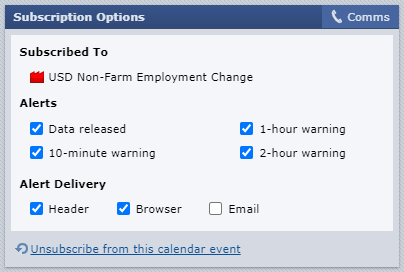
To get started with alerts, click the subscribe icon. If it’s your first time subscribing, you will see a popup that will allow you to edit the settings. Additional subscriptions after this will copy these settings, so you’ll have to click the Subscribe icon a second time to activate the subscription options.


Subscriptions Block
You can view and edit all your subscriptions from the Subscriptions block, located on your profile. (www.forexfactory.com/YOURNAME)
.png)
Comms
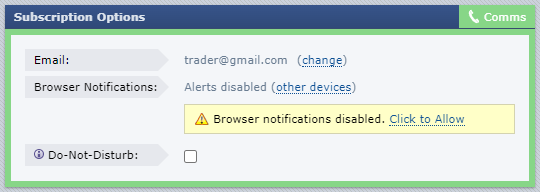
The Comms screen is where you can edit and verify your email address, enable or disable browser alerts, and activate Do-Not-Disturb mode. Comms settings are found at the top-right of Subscriptions Options popup, at the top-right of the Alert list in the header, or in ‘Settings’ on your profile.
Receiving Alerts
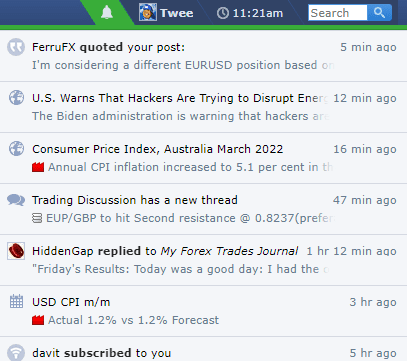
Header alerts are accessed by clicking the bell icon located in the Forex Factory header. Only alerts sent within the last 30 days are shown.
Browser Alerts
Browser alerts are generated by commonly used internet browsers, and display a small pop-up on your screen, even when you are not on the Forex Factory website. To receive browser alerts, notifications must be enabled in your web browser.
To enable browser notifications in Chrome:
- On your computer, open Chrome and navigate to Forex Factory.
- At the top left, in the URL bar, click the Lock icon > Site Settings.
- Click Site Settings > Notifications.
- Open the drop-down menu next to Notifications and select Allow.
- On your computer, open Safari and navigate to Forex Factory.
- In the Safari app, click Safari > Preferences > Websites.
- Scroll to the bottom of the list on the left and click Pop-up Windows.
- In the pop-up menu for Forex Factory, select Allow.
- On your computer, open Edge and navigate to Forex Factory.
- In the Edge app, click Settings > Advanced > Manage
- Click on Forex Factory.
- Move the toggle to the right to enable notifications.
Email Alerts
Email alerts arrive in your email inbox after you’ve verified your address to be valid. To verify, request a verification email from the ‘Comms’ window and click the link in verification email. Visit the ‘Comms’ window to change your email or resend another verification.
Product: Trade Explorer

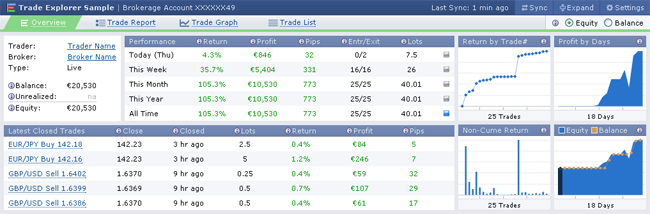
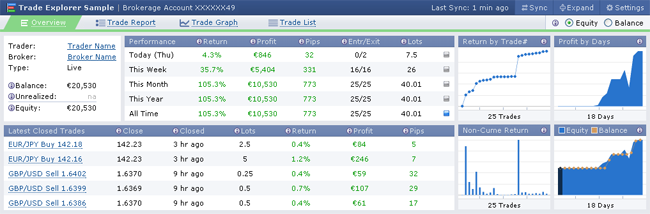
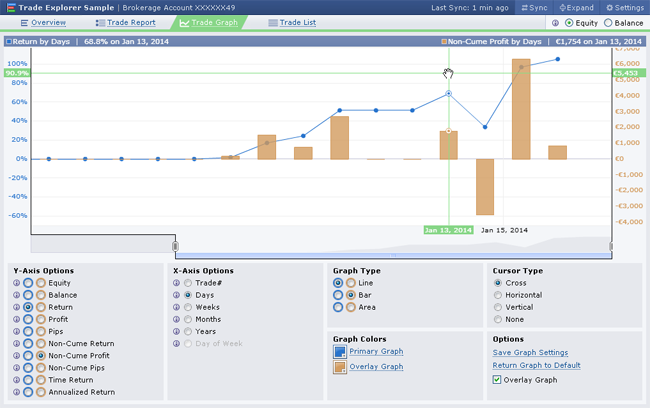
The Trade Explorer was designed for experienced traders. Statistics are reported in the same industry-standard format used by CTAs and hedge funds, pips are used to describe market movement (not profit), and all metrics consider open-trade equity (related blog post: Trade Explorer: for pro traders). Calculation accuracy is of paramount importance, with significant and ongoing efforts deployed to to ensure data integrity.
Creation
You can create up to 16 Trade Explorers from the Trade Explorer creation page. You can also click 'Create Trade Explorer' (
Synchronization
When creating a Trade Explorer, all historical trading data is imported from your brokerage account. To keep the data current, Forex Factory's servers securely and automatically connect to your account every few minutes to grab any new data. Therefore, Trade Explorer data is only delayed from real-time by the duration since the last synchronization ('Last Sync' time denoted in the header).
Sometimes the automatic synchronization only occurs every few hours (e.g., accounts with no recent trading history), however, a manual sync can be issued at any time by clicking the 'Sync' button (
Equity|Balance Toggle
In trading, equity is the value of an account including open trades, and balance is the value excluding open trades. The Equity|Balance toggle allows the Trade Explorer to be switched between displaying equity-based metrics and balance-based metrics.
For example, with the 'Equity' option selected, the metric 'Return This Month' will measure the account equity at the start of the month (with open trades marked-to-market) against the equity at present (again with open trades marked-to-market). When the 'Balance' option is selected, the metric will measure account balance at the start of the month (open trades ignored) against the current balance.
While balanced-based metrics can be useful for understanding some aspects of your trading, measuring performance in terms of equity is a more professional approach (related blog post: Trade Explorer: for pro traders). The open profit/loss on an asset is critical to understanding its value, and with open profit/loss is hidden, returns can look fantastic while the account is near a margin call (think martingale strategy with huge open losers).
Pips Defined
The Trade Explorer considers a pip to be a change in the second or fourth decimal of a currency pair price, depending on the pair. For example, a change in EUR/USD from 1.3000 to 1.3001 would be considered one pip, and a change in USD/JPY from 100.00 to 100.01 would also be considered one pip. The decimal beyond the pip level is considered a "pipette." This definition is required because some brokers consider a pip to be the smallest movement of a currency pair, which Trade Explorer considered to be a pipette.
The Trade Explorer will report trades in non-currency instruments, such as gold or oil, but will not treat their market movements as pips. Therefore, pip totals and pip calculations (such as 'Average Trade Pips') will not include trades made in non-currency instruments. This approach is taken because non-currency instruments have vastly different tick values, which can distort pip-based statistics.
Lot Size Defined
The lot size of the connected brokerage account is defined on the 'Trade Report' tab, and that size is reflected throughout the Trade Explorer. For example, if you're trading standard lots (100K), '2 lots' reported on the Trade Explorer means two standard lots (200K). Likewise, if your brokerage account is set up to trade mini lots, when the Trade Explorer reports '2 lots' it means two mini lots (20K).
Help Icons
Throughout the Trade Explorer you'll see help icons (
Settings
Visibility and Permissions
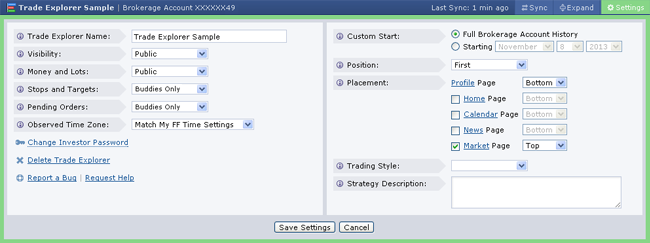
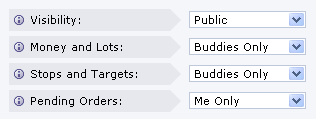
There are four settings related to the visibility of your Trade Explorer. The 'Visibility' setting determines who can see the Trade Explorer — you only, only your buddies, only members you're subscribed to, only Forex Factory members, or open to the public. The other three settings hide specific information from those who can see your Trade Explorer. For example, if 'Visibility' is set to 'Public', but 'Money and Lots' is set to 'Buddies Only', a visitor to Forex Factory would be able to see your Trade Explorer, but there would be a lock icon (
Money and lots are grouped in one setting because if either is known, the other can be calculated. For example, if you were able to hide money and keep lots public, money could be calculated from the lot values.
Time Zone
During creation you'll specify a time zone for which the Trade Explorer will abide. The time zone can be changed via the settings. For example, if your Trade Explorer is set to GMT+2, periods such as 'Today' and 'This Month' will show the same GMT+2-based timestamps to anyone viewing your Trade Explorer. The time zone is decoupled from your Forex Factory global time zone setting to allow you, for instance, to match the time zone to your broker. It also makes for consistent communication with others viewing your Trade Explorer.
Change Investor Password
If your brokerage account uses the MetaTrader 4 platform (i.e., connected via Investor Password), you can change your credentials by clicking 'Change Investor Password' (
Delete Trade Explorer
When you delete a Trade Explorer it's permanently deleted from Forex Factory's server infrastructure, and after one month it will not even be stored on database backups. Deleting a Trade Explorer is not reversible, although a new one can be created with the account.
Custom Start
This setting allows you to specify a date that your Trade Explorer begins including brokerage account history, thereby truncating old trading history that may not be relevant to the current strategy or period (related blog post: Get a fresh start with Trade Explorer).
Position and Placement
These settings allow you to specify where the Trade Explorer appears on the website, and in what position it appears when you have more than one.
Security and Privacy
Your read-only account credentials are transferred to Forex Factory over a secure socket, and data is stored using 128-bit encryption. Forex Factory will never divulge your information to 3rd parties (in accordance with the privacy policy) and does not retain your data after you delete your Trade Explorer.
MetaTrader 4 Investor Password
Trade Explorers connect to the MetaTrader 4 platform using use your account number and “Investor Password.” The Investor Password was developed by MetaQuotes (creator of MetaTrader) to allow traders to show their account to others without allowing the ability to make changes (i.e., read-only access).
The Investor Password allows:
Allows viewing of pending orders
Allows viewing of historical trading performance
Allows viewing of money balances
The Investor Password does not allow:
Does NOT allow opening/closing of positions
Does NOT allow any alteration of open positions or open orders
Does NOT allow viewing of your personal information
Does NOT allow viewing of Expert Advisors running on the platform
Most MetaTrader-based brokerage accounts come with a preset Investor Password which is included in the registration mail. The password can be changed within the platform via Tools > Options > Server > Change. If you change the Investor Password, Forex Factory’s servers will not have access to your account until you update the password in the settings. Forex Factory does NOT retain the Investor Password whatsoever after you change it or delete your Trade Explorer.
Privacy Permissions
In your Trade Explorer's settings you can specify who can view it. Choose between 'Public' (everyone can see it), 'Members Only' (only Forex Factory members can see it), 'Subscriptions Only' (only members you are subscribed to can see it), 'Buddies Only' (only your buddies can see it), or for the utmost privacy you can choose 'Me Only,' so only you can see it. You can set permissions on certain types of information as well, such as money, lots, stop losses, and profit targets.
Troubleshooting
Below are the most common issues experienced with the Trade Explorer. If you have a problem not covered please submit a help request.
Not synchronizing
Your Trade Explorer should automatically synchronize with your brokerage account every few minutes (must refresh the page to see latest data), or every few hours if there's no recent trading activity. You can determine the time of the last synchronization from the 'Last Sync' timestamp in the top-right of the interface. If your Trade Explorer is not automatically synchronizing (i.e., shows an old timestamp), there are a few possible causes:
1. Your Explorer was deactivated due to a long period of inactivity. In this case you'll see an alert at the top of your Trade Explorer which gives you the ability to reactivate.
2. The Investor Password on your MetaTrader platform has been changed. Your Trade Explorer needs the proper Investor Password in order to connect with your brokerage account. If you've changed the password on the MetaTrader platform, you'll need to update the password in the settings.
3. Your broker changed the server for your account. Sometimes brokers will move accounts to different servers for internal purposes. If you think this is the case, you can delete the Trade Explorer and recreate it, or if that's not desirable, you can submit a help request to have the server fixed for you.
Not matching another source
There are several reasons why the statistics and data shown on the Trade Explorer may not match similar tools, or even your trading platform itself. Many times the difference can be attributed to Trade Explorer reporting metrics in a more professional format, such as the consideration of open trade equity in every statistic (related blog post: Trade Explorer: for pro traders).
Other reasons include the treatment of swap and commission. The Trade Explorer treats swap and commission as part of each trade's profit or loss, whereas MetaTrader and most analytic websites account for swap and commission separate from the trade.
If you feel there's an error in one of your Trade Explorer's metrics, please submit a help request.
Product: Forums
Thread Starter Controls

Impact Hurdle
You can limit posting to members who've reached a desired impact rank (see Impact Ranking System) by setting an impact hurdle. Members you're subscribed to can bypass the hurdle, and you cannot be blocked from your own thread regardless of the settings.
To illustrate, if you start a thread and set the hurdle to 'Medium Impact,' the only members who can post in your thread are those who are ranked medium impact (
Ignore Blocking
Members who you're ignoring (
Best Practices
Cleanup bad posts:
Ignore trolls:
Credit sources:
Search first:
Avoid ALL CAPS:
Start threads in the appropriate forum:
Use descriptive thread titles:
Product: News
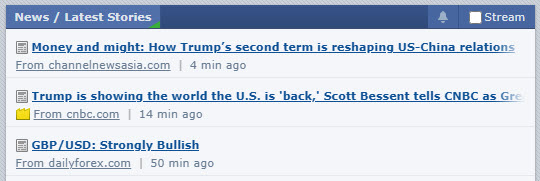
The News product provides traders with professionally-curated stories that are important to traders, and it is Forex Factory's mission to deliver market-moving news faster and more consistently than any other source on the internet. Additionally, Forex Factory strives to provide traders with the most useful and entertaining forex-related content available.
Forex Factory's News is curated from a wide variety of quality sources including central banks, global news agencies, forex brokers, financial institutions, and more. News sources are frequently and rigorously evaluated — all being accountable to the highest standard of quality. Stories are selected by Forex Factory's Financial Economists, who monitor the markets 24/7. Members of the community may also submit stories for consideration.
Settings
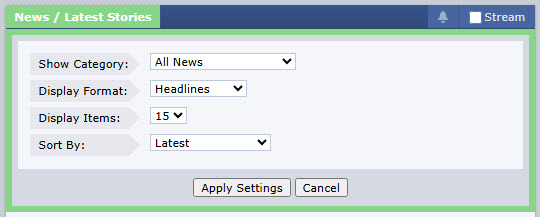
Each News block is customizable and can display stories by category, popularity, and comments. You can select from several criteria to customize your display by adjusting the flex-box settings in the top-left corner.
Subscriptions and Alerts
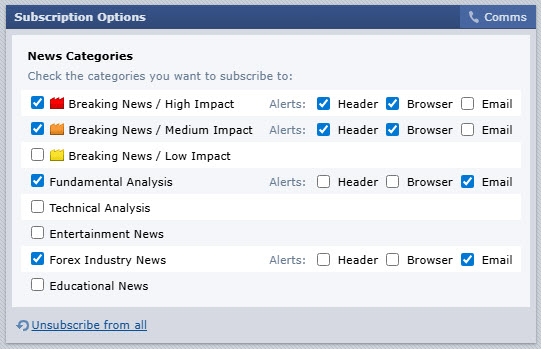
Subscribing to news categories and activating alerts is done via the Subscribe button. Clicking it activates the Subscription settings.
.jpg)
.jpg)
Story View
Clicking into stories allows you to view a preview, a link to the original source, member comments, related news, surrounding stories, and linked calendar events. Alerts can also be activated for all comments by clicking the Subscribe button. Posting a comment will automatically subscribe you to the comments, and unsubscribing is automatic after two weeks of comment inactivity.

.jpg)
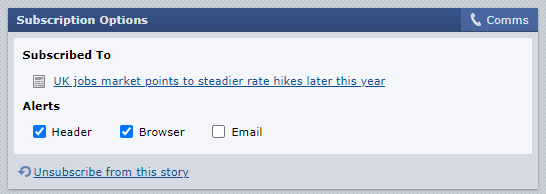
Clicking the subscribe button again opens Subscription Options for the individual story.
News Categories
A story is considered 'Breaking' when it contains new information that has market-moving potential.
Based on the price volatility of related instruments, breaking news stories are rated as either High Impact (
Often, as additional information develops, relevant news may be combined in the form of joined stories. Stories are joined when they provide new information relating to the original story, and when published within an approximate time of the initial article.
.png)
.png)
Fundamental Analysis
Includes analysis, insights, and rumors regarding market-related events or known drivers of forex price movements. Fundamental news makes up the majority of articles posted to Forex Factory.
Technical Analysis
Stories are typically price-based analysis and insights related to forex instruments. These often include charts and indicators used to make price predictions.
Entertainment News
These articles sprinkle an amount of entertainment into what is often a very serious profession. Articles are often funny, scandalous, exciting, or touching, and shine a financial light on the trending news of the day.
Forex Industry News
Includes stories about forex-focused trading businesses and regulatory updates, which are not directly related to price movements.
Educational News
Articles are typically history lessons or tutorials that are useful to professional traders.
Submitting News
Breaking news, professional analysis, and entertaining news are the most likely to be posted, while stories that are stale, duplicates, promotional, or cater to novice traders are least likely to be posted.
A denied story does not mean the editors deemed the story to be low quality; it means the story was not the best fit with the targeted news mix at the time.
How to Submit
Paste the story URL into the "Submit News" field at the top-left sidebar of News and click Submit News.
Story submission details can be edited on the page that follows. If submitting via mobile phone, this screen will be skipped, and the story will be immediately sent to the news editors.
.png)
Once finalized, clicking ‘Submit to Editors’ will send the story to Forex Factory staff who will evaluate the submission for necessary edits and posting.
Product: Market
Forex Instruments
Forex Factory's Market product includes 41 forex instruments, reporting prices 24-hours a day in real-time. Data is aggregated from more than a dozen sources, resulting in prices with exchange-like integrity, which are truer to the market than any single OTC feed. To view an instrument, type any of the following into the Scanner or Chart:
- USD/CADUSD/CHFUSD/CNYUSD/HKDUSD/INRUSD/JPYUSD/MXNUSD/NOKUSD/PLN
- USD/RUBUSD/SEKUSD/SGDUSD/THBUSD/TRYUSD/ZAR
- USD/CADUSD/CHFUSD/CNYUSD/HKDUSD/INRUSD/JPYUSD/MXNUSD/NOKUSD/PLNUSD/RUBUSD/SEKUSD/SGDUSD/THBUSD/TRYUSD/ZAR
- EUR/AUDEUR/CADEUR/CHFEUR/GBPEUR/JPYEUR/NZDEUR/USD
- EUR/AUDEUR/CADEUR/CHFEUR/GBPEUR/JPYEUR/NZDEUR/USD
- GBP/AUDGBP/CADGBP/CHFGBP/JPYGBP/NZDGBP/USD
- GBP/AUDGBP/CADGBP/CHFGBP/JPYGBP/NZDGBP/USD
- AUD/CADAUD/CHFAUD/JPYAUD/NZDAUD/USD
- AUD/CADAUD/CHFAUD/JPYAUD/NZDAUD/USD
- NZD/CADNZD/CHFNZD/JPYNZD/USD
- NZD/CADNZD/CHFNZD/JPYNZD/USD
- CAD/CHFCAD/JPY
- CAD/CHFCAD/JPY
- CHF/JPY
- CHF/JPY
Data Sources
The Market product aggregates price data, in real-time, from the following ECNs and market makers:
























Live Data
Market applications have a 'Live' option in the header. When checked, prices will update automatically, without requiring the page to reload. Please note that live feeds will persistently use your computer's processor and network connection.


Open/Close Times
Without a central exchange, there's no official open or close times for the forex market. Like all spot markets, every participating dealer sets their own market hours. For practical purposes, Forex Factory considers the forex market open from Sunday 5pm ET to Friday 5pm ET, and this period is referred to as 'FF market hours' ('ET' stands for 'Eastern Time' and it's the time zone for New York).
When it's 5:00pm in New York, it's 4:00pm in your local time (assuming your time is synchronized). Therefore, FF market hours are 4:00pm to 4:00pm in your time zone.
Market operates according to FF market hours. The Scanner and Chart will stop updating when the market is considered closed, the chart's daily bars open and close according to FF market hours, and the chart's first 4-hour bar of each day opens according to FF market hours. Please note that the FF market hours' range will shift by one hour with daylight savings time in Spring and Fall, as New York can be in either EST (Eastern Standard Time) or EDT (Eastern Daylight Time).
Disclaimer
Data included in the Market product is aggregated from the above-listed sources. Forex Factory does not verify this data, and disclaims any obligation to do so. Forex Factory and the above-listed sources expressly disclaim the accuracy, adequacy, or completeness of the produced data, and shall not be held liable for any errors, omissions, defects, delays, interruptions, or for any actions taken in reliance on the data. All data and information are provided "as is" for personal informational purposes only, and is not intended for trading purposes or as financial advice. Please consult several sources before executing a trade.
Scanner
Metric Rows
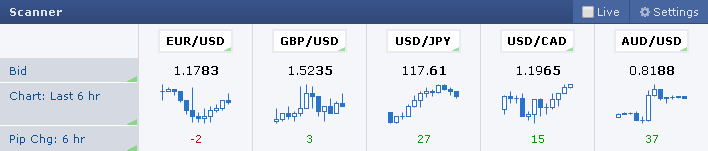
The metrics can be customized by clicking on the metric's cell. You can choose from twelve metrics, and many allow you to set the metric's period and color.
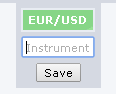
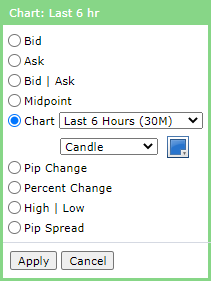
For look-back periods of 'Last 6 Hours' or shorter, change is calculated by comparing the current bid to the closing bid of the 1M bar X minutes ago (i.e., rolling basis). For example, the 'Last 30 Minutes' change is the current bid minus the closing bid of the 1M bar that occurred 30 minutes ago.
For the look-back periods of '12 Hours' and longer, the change is calculated similarly, except 5M bars are used instead of 1M bars. For example, the 'Last 12 Hours' change is the current bid minus the closing bid of the 5M bar that occurred 12 hours ago.
The period represents absolute time, not market time. Therefore, when the market opens for the week, the 'Last 24 Hours' period will look back to the previous day, not the last day the market was open. To illustrate, if you're viewing the 'Pip Change' for the 'Last 24 Hours' shortly after the market opens for the week, you'll effectively be viewing the change since the market opened (not a full 24 hours).
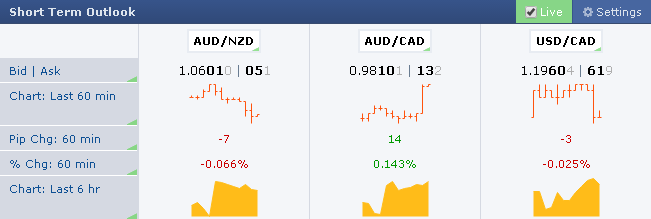
Abbreviations Used
| 5M | = | Change from 5 minutes ago |
| 30M | = | Change from 30 minutes ago |
| 60M | = | Change from 60 minutes ago |
| 6H | = | Change from 6 hours ago |
| 12H | = | Change from 12 hours ago |
| 24H | = | Change from 24 hours ago |
"1.1234 | 36" is shorthand for "1.1234 bid, 1.1236 ask"
Chart
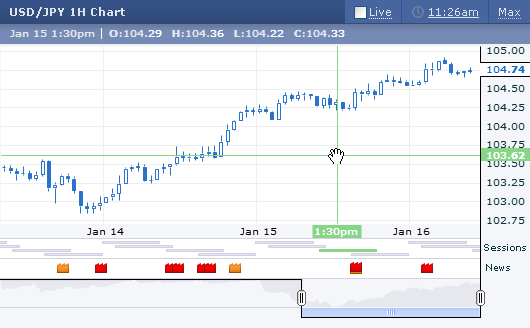
Sessions
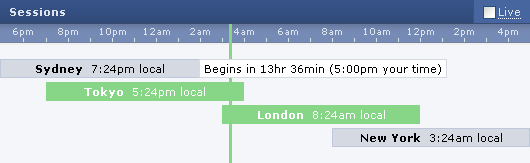
Forex is an over-the-counter international market with no central exchange, and therefore has no official market hours. The sessions defined (Sydney, Tokyo, London, New York), and the begin/end times of each session, are based on OANDA's FXMarketHours tool. OANDA is sourced primarily because they're the only major broker to publish such data, and their listed session times are the generally accepted view.
The begin/end times of each session are as follows (displayed in your time). Please note that session times will shift by one hour in the Spring and Fall due to daylight saving time.
| Begin | End | |
|---|---|---|
| Sydney | 4:00pm | 1:00am |
| Tokyo | 7:00pm | 4:00am |
| London | 2:00am | 11:00am |
| New York | 7:00am | 4:00pm |