

This is a monitor for the Trading made Simple system described in this thread: http://www.forexfactory.com/showthread.php?t=291622
First I would like to state that Im not a coder but mainly forex trader that happened to have coding as a hobby!
I came across this system for couple of weeks ago. I traded demo for a few days and went life in the last 4 days. The result is nice but not good enough. Hop to get better result with some more experience and this new tool! I develop this tool because it seems quite necessary in order to monitor all pairs I wanted to, and pick up signals when they occur.
This is not an indicator! This is a monitoring EA that display all necessary information to trade the TMS system. When you pick a signal on this monitor you need to go to a normal TMS chart and make your investigation before you decide to trade the signal (As described in the original TMS thread).
I developed the monitor for my own use but I released it because I believe that there are some other TMS trader the can benefit from this tool.
I have tested the monitor only for few hours - please let me know of any bug that you may see.
Suggestion for improvement are also welcome - I will implement some of them when I have the time for it (as I said I'm a trader not a coder)
The TMS monitor is an EA that should run on one chart with symbol of your choice.
The TMS monitor is capable of monitoring any number of currency pairs with any time frame you may wish.
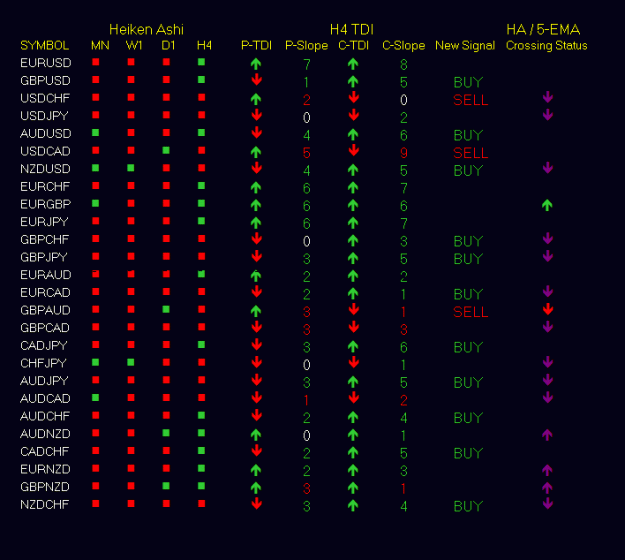
The monitor display information about the relation between the TDI price line(green) and the TDI signal line(red);
P-TDI - TDI status for the previous bar - green over red shows as an arrow pointing up. green under red shows as an arrow pointing down.
C-TDI - TDI status for the current bar - green over red shows as an arrow pointing up. green under red shows as an arrow pointing down.
P-Slope - is the Slope value of the green price line for the previous bar. Slope value les then 1 will display as 0.
C-Slope - is the Slope value of the green price line for the Current bar. Slope value les then 1 will display as 0.
BUY/SELL signals - Those signals will appear when C-TDI is in efferent direction than P-TDI - this means that a new crossing is going on the current Bar. When you get this signal - go to your TMS chart and make your investigation before you decide to trade the signal.
HA crossing 5 EMA - the crossing status of HA bar with the 5 EMA. This shows as color coded arrow in the direction of the cross:
Purple arrow - cross happen in a previous bar(s) in the direction of the arrow.
Green or Red - the cross is going on now - on the current bar - in the direction of the arrow. When you get this signal - go to your TMS chart and make your investigation to find out if you have a trade opportunity.
Installation instruction:
The TMS Monitor using the following Indicators:
1. Heiken Ashi.ex4
2. Tdi Red Green.ex4
1. Make sure the above indicators are installed in your expert>indicators directory. If you dont have them you can download them in this post.
2. Download and install TmsMonitor.ex4 in the expert directory.
3. Download and install TmsMonitor.tpl in your mt4>template directory.
4. Open a chart of your choice and compress it by dragging the mouse left button down on the right side of the chart.
5. Set the chart to the time frame you wish to monitor(H1,H4,D1).
6. Install the template TmsMonitor.tpl
You can change the time frame just buy clicking different time frame on the chart.
You can also modify the currency pairs in the EA properties.
Normally the monitor activity are triggered by a tick - so the update of the panel will happens only when a tick received by the symbol on the monitor chart. You can change that by setting AlwaysActive=true - in this case the monitor will continually drag information from the server without waiting for a tick. This mode will make a higher impact on you CPU! so if your machine is old and weak - don't use it!
Now you are ready and a panel like the following sample shoud be displayed:
///////////////////////////////////August 1 2017///////////////////////////////////////////
Today I have released the TMS Dashboard
(inspired of several dashboard that has been published on FF in the last couple of years). I planned to add some more information on this dash in the near Future. Bug report and suggestion for additional functionality are welcome.
In attempt to reduce the heavy CPU load of this indicator, the code for the TDI RED GREEN indicator is embedded in the dash. I still recommend to run the dash board with a reduced list of pairs (only the ones that you want to trade.
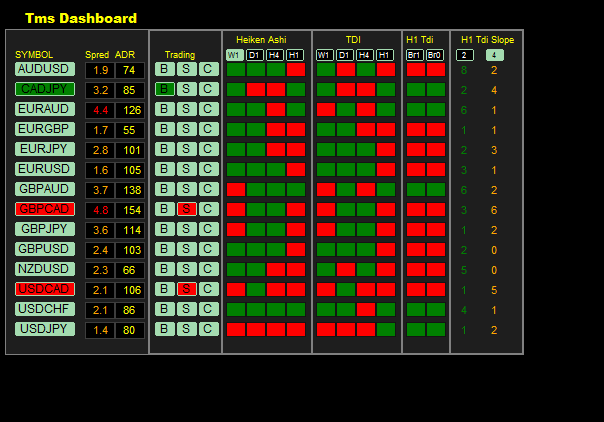
A new version includes couple of bug fix and minor additions.
1. bug in handling alert has been fixed.
2. handling of slope filter on bar1 is corrected.
3. Push alert has been implemented.
4. Dashboard will run on predefined symbol (default=USDTRY, can be defined on dash parameters)
5. dash will automatically run on plain background and color can be selected on dash parameters.
///////////////////////////////////1/7/2019///////////////////////////////////////////
New version TMSdash-1.03 allow - allow modification of the shift parameter for MA5
First I would like to state that Im not a coder but mainly forex trader that happened to have coding as a hobby!
I came across this system for couple of weeks ago. I traded demo for a few days and went life in the last 4 days. The result is nice but not good enough. Hop to get better result with some more experience and this new tool! I develop this tool because it seems quite necessary in order to monitor all pairs I wanted to, and pick up signals when they occur.
This is not an indicator! This is a monitoring EA that display all necessary information to trade the TMS system. When you pick a signal on this monitor you need to go to a normal TMS chart and make your investigation before you decide to trade the signal (As described in the original TMS thread).
I developed the monitor for my own use but I released it because I believe that there are some other TMS trader the can benefit from this tool.
I have tested the monitor only for few hours - please let me know of any bug that you may see.
Suggestion for improvement are also welcome - I will implement some of them when I have the time for it (as I said I'm a trader not a coder)
The TMS monitor is an EA that should run on one chart with symbol of your choice.
The TMS monitor is capable of monitoring any number of currency pairs with any time frame you may wish.
The monitor display information about the relation between the TDI price line(green) and the TDI signal line(red);
P-TDI - TDI status for the previous bar - green over red shows as an arrow pointing up. green under red shows as an arrow pointing down.
C-TDI - TDI status for the current bar - green over red shows as an arrow pointing up. green under red shows as an arrow pointing down.
P-Slope - is the Slope value of the green price line for the previous bar. Slope value les then 1 will display as 0.
C-Slope - is the Slope value of the green price line for the Current bar. Slope value les then 1 will display as 0.
BUY/SELL signals - Those signals will appear when C-TDI is in efferent direction than P-TDI - this means that a new crossing is going on the current Bar. When you get this signal - go to your TMS chart and make your investigation before you decide to trade the signal.
HA crossing 5 EMA - the crossing status of HA bar with the 5 EMA. This shows as color coded arrow in the direction of the cross:
Purple arrow - cross happen in a previous bar(s) in the direction of the arrow.
Green or Red - the cross is going on now - on the current bar - in the direction of the arrow. When you get this signal - go to your TMS chart and make your investigation to find out if you have a trade opportunity.
Installation instruction:
The TMS Monitor using the following Indicators:
1. Heiken Ashi.ex4
2. Tdi Red Green.ex4
1. Make sure the above indicators are installed in your expert>indicators directory. If you dont have them you can download them in this post.
2. Download and install TmsMonitor.ex4 in the expert directory.
3. Download and install TmsMonitor.tpl in your mt4>template directory.
4. Open a chart of your choice and compress it by dragging the mouse left button down on the right side of the chart.
5. Set the chart to the time frame you wish to monitor(H1,H4,D1).
6. Install the template TmsMonitor.tpl
You can change the time frame just buy clicking different time frame on the chart.
You can also modify the currency pairs in the EA properties.
Normally the monitor activity are triggered by a tick - so the update of the panel will happens only when a tick received by the symbol on the monitor chart. You can change that by setting AlwaysActive=true - in this case the monitor will continually drag information from the server without waiting for a tick. This mode will make a higher impact on you CPU! so if your machine is old and weak - don't use it!
Now you are ready and a panel like the following sample shoud be displayed:
Attached Image (click to enlarge)
///////////////////////////////////August 1 2017///////////////////////////////////////////
Today I have released the TMS Dashboard
(inspired of several dashboard that has been published on FF in the last couple of years). I planned to add some more information on this dash in the near Future. Bug report and suggestion for additional functionality are welcome.
In attempt to reduce the heavy CPU load of this indicator, the code for the TDI RED GREEN indicator is embedded in the dash. I still recommend to run the dash board with a reduced list of pairs (only the ones that you want to trade.
Attached Image
A new version includes couple of bug fix and minor additions.
1. bug in handling alert has been fixed.
2. handling of slope filter on bar1 is corrected.
3. Push alert has been implemented.
4. Dashboard will run on predefined symbol (default=USDTRY, can be defined on dash parameters)
5. dash will automatically run on plain background and color can be selected on dash parameters.
Attached File(s)

///////////////////////////////////1/7/2019///////////////////////////////////////////
New version TMSdash-1.03 allow - allow modification of the shift parameter for MA5
Attached File(s)
Attached File(s)

 So what timeframe has fared better for you? or have you just tried the 4 hourly only?

